
FlowDevs
Constrain the Problem, Not the Intelligence
Effective AI prompting requires constraining the problem, permissions, and success criteria, not the intelligence. Learn how to empower your AI agents.
Aug 1, 2026 · 4 min read
Read more
December 6, 2025 · 5 min read · Justin Trantham
Compare Microsoft Power Automate vs. Make (Integromat) user experience for beginners, intermediate users, and pros. Find the best automation tool for your business.
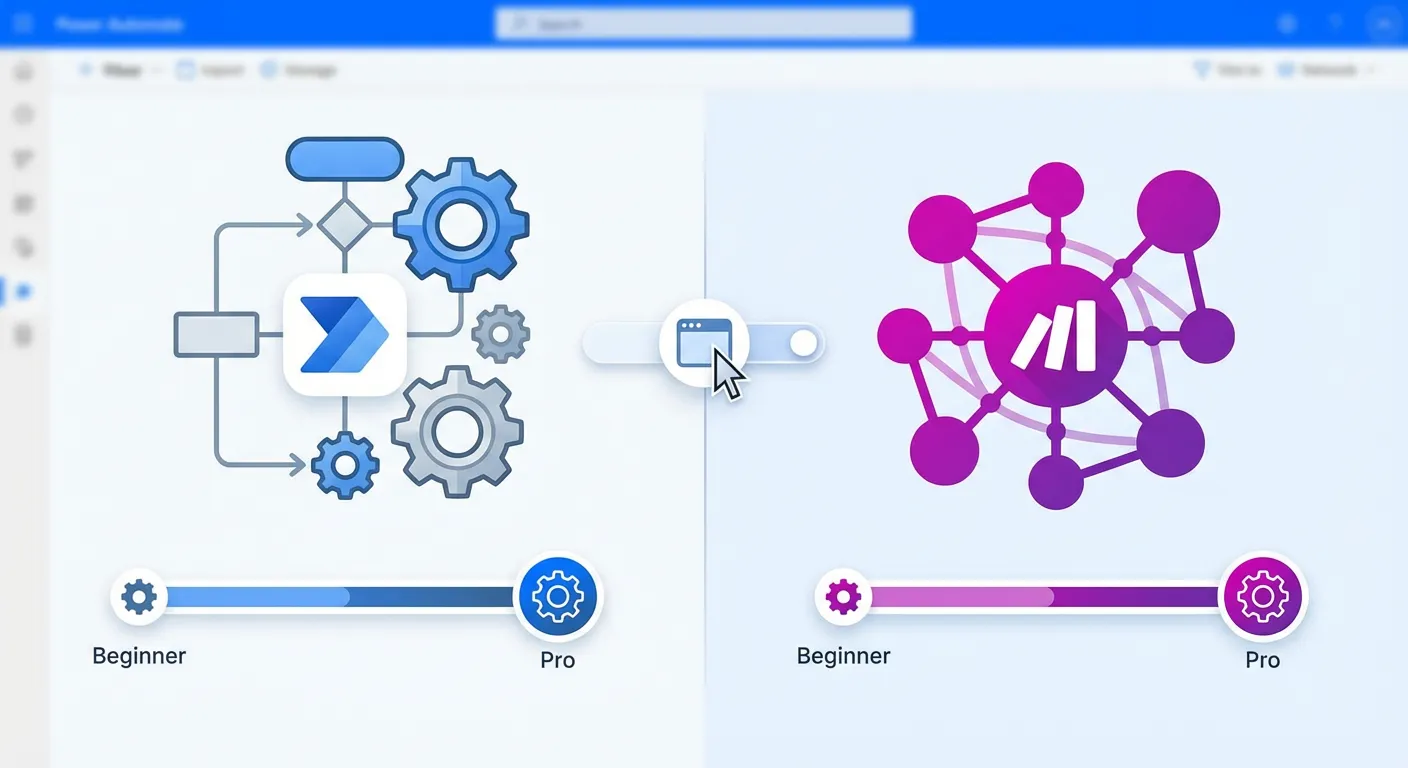
In the world of low-code platforms, two giants stand out: Microsoft Power Automate and Make (formerly Integromat). Both promise to eliminate manual tasks without heavy coding, but they approach automation with vastly different philosophies. For a business professional, the choice often comes down to user experience. How steep is the learning curve? How flexible is the design canvas? Can it handle complex custom code?
In this guide, we break down the user experience for Beginners, Intermediate Users, and Advanced Pros to help you decide which platform fits your workflow needs.
For newcomers, the priority is onboarding speed. You want to see value immediately without reading a 50-page manual.
If your day revolves around Outlook, Teams, and SharePoint, Power Automate feels like home. The interface uses the same design language as Office 365, making it less intimidating for corporate users.
The Template King: Microsoft offers thousands of pre-built templates (e.g., "Save Outlook attachments to OneDrive"). A beginner can simply click a template, sign in, and the flow is ready.
Linear Logic: The flow builder is a vertical list. You add a trigger, then Step A, then Step B. It is structured and rigid, which prevents beginners from getting "lost" in an open canvas.
Make takes a completely different approach. It replaces linear lists with a visual canvas.
Drag-and-Drop: You build "scenarios" by dragging bubbles (modules) onto a canvas and connecting them with lines.
Intuitive Flow: Beginners can literally see the logic. If you want an email to trigger a spreadsheet update, you connect the email bubble to the spreadsheet bubble.
Low Barrier to Entry: While there is a slight learning curve to understand "modules," the visual nature of Make is often cited as more fun and intuitive for those outside the Microsoft ecosystem.
Verdict for Beginners: If you live in Microsoft 365, start with Power Automate. If you are a visual learner or use diverse apps (Gmail, Slack, Trello), start with Make.
As you move beyond templates, you will need to build custom loops, branches, and multi-step workflows. This is where the interface design (UX) critically impacts your speed.
Power Automate uses a "Step-by-Step" editor.
Pros: Great for sequential, administrative tasks (e.g., Approvals). The "Apply to Each" loops and "Condition" blocks are form-based and easy to fill out.
Cons: Refactoring is painful. If you realize Step 5 actually needs to happen before Step 2, you often cannot just drag it up; you may have to delete and recreate steps. The rigid structure makes experimentation difficult.
Make shines for the intermediate builder because of its non-linear canvas.
Visual Branching: Need to split a workflow into three different paths? Just add a "Router" module and draw three lines. You can see the logic map at a glance.
Real-Time Watching: When you run a scenario, you can watch the data bubbles travel through the connection lines in real-time. This makes debugging incredibly satisfying and clear compared to reading text logs.
Rearranging: Changing the order of operations is as simple as dragging a module to a new spot and reconnecting the line.
Verdict for Intermediate Users: Make wins on design flexibility and debugging. Power Automate wins if your workflow relies heavily on deep integration with SharePoint lists or Dynamics 365.
For the "Pro" user-the developer or IT architect-the focus shifts to API flexibility, data manipulation, and governance.
Power Automate is an enterprise beast. It is designed to be governed by IT departments.
RPA (Robotic Process Automation): Power Automate Desktop allows you to record screen actions (clicks and keystrokes) to automate legacy software that doesn't have an API. Make does not have a native equivalent for this.
AI Builder: Native integration with Microsoft AI allows for document processing (scanning PDFs for data) without external tools.
Governance: Features like ALM (Application Lifecycle Management) and Data Loss Prevention policies make it the safe choice for large corporations.
Make is a favorite among power users who love data manipulation.
JSON & Arrays: Make treats data manipulation (JSON parsing, array aggregation) as a core feature. You can transform complex data structures on the fly with built-in modules.
Custom Code: Through specific modules, you can inject custom JavaScript or Python directly into the workflow.
API Freedom: The HTTP module in Make is incredibly robust, allowing you to connect to any service with an API, often with less friction than creating a "Custom Connector" in Power Automate.
Verdict for Pros: If you need to automate legacy desktop apps or adhere to strict corporate IT governance, use Power Automate. If you need to manipulate complex JSON data or connect disjointed web APIs, Make is the superior tool.
| Feature | Microsoft Power Automate | Make (Integromat) |
|---|---|---|
| Interface Style | Linear, Vertical List (Structured). | Visual, Infinite Canvas (Free-form). |
| Best For... | Microsoft 365 heavy users & Enterprise IT. | Visual thinkers, startups, & diverse app stacks. |
| Debugging | Run history logs (Text-based). | Real-time visual data flow (Visual). |
| Complex Data | Can be tricky (requires expressions). | Excellent (Native JSON/Array tools). |
| Legacy Apps | Yes (via RPA/Desktop Flows). | No (Cloud-native APIs only). |
| Onboarding | Fast (via Templates). | Moderate (via Visual Drag-and-Drop). |
There is no single winner-only the right tool for the job.
Choose Power Automate if your organization runs on Microsoft. The seamless integration with Teams, Outlook, and SharePoint, combined with Enterprise-grade security, makes it the standard for corporate automation.
Choose Make if you crave flexibility. The visual builder is a joy to use, and its ability to handle complex data transformations makes it the preferred choice for agile teams and complex integrations involving third-party apps (Shopify, Slack, Airtable, etc.).
Actionable Insight: Don't be afraid to use both! Many organizations use Power Automate for internal document approvals and Make for connecting their marketing stack.
Whether you are stuck on a complex Power Automate expression or trying to map a massive Make scenario, FlowDevs is here to help. We specialize in turning manual chaos into automated efficiency.
Ready to unlock efficiency and innovation? Contact FlowDevs today for a consultation on Power Apps, Power Automate, or Copilot Studio. Let us help you streamline your workflows and create intelligent solutions that drive real-world results.
Effective AI prompting requires constraining the problem, permissions, and success criteria, not the intelligence. Learn how to empower your AI agents.
Aug 1, 2026 · 4 min read
Read moreStop copy-pasting standard code snippets. Learn how AI coding agents use system context to automate workflows, fix bugs, and build better software.
Jul 30, 2026 · 5 min read
Read moreA case study on why fixed UI is becoming less important and how runtime-rendered interfaces can revolutionize operational software and business workflows.
Jul 30, 2026 · 7 min read
Read moreWe build the systems described here. A short call is usually enough to tell whether it's worth building.