
FlowDevs
Constrain the Problem, Not the Intelligence
Effective AI prompting requires constraining the problem, permissions, and success criteria, not the intelligence. Learn how to empower your AI agents.
Aug 1, 2026 · 4 min read
Read more
March 3, 2026 · 1 min read · Justin Trantham
Learn to connect OpenAI Codex to your Notion workspace using MCP. This step-by-step guide covers both CLI and config file setup to empower Codex with access to your documents.
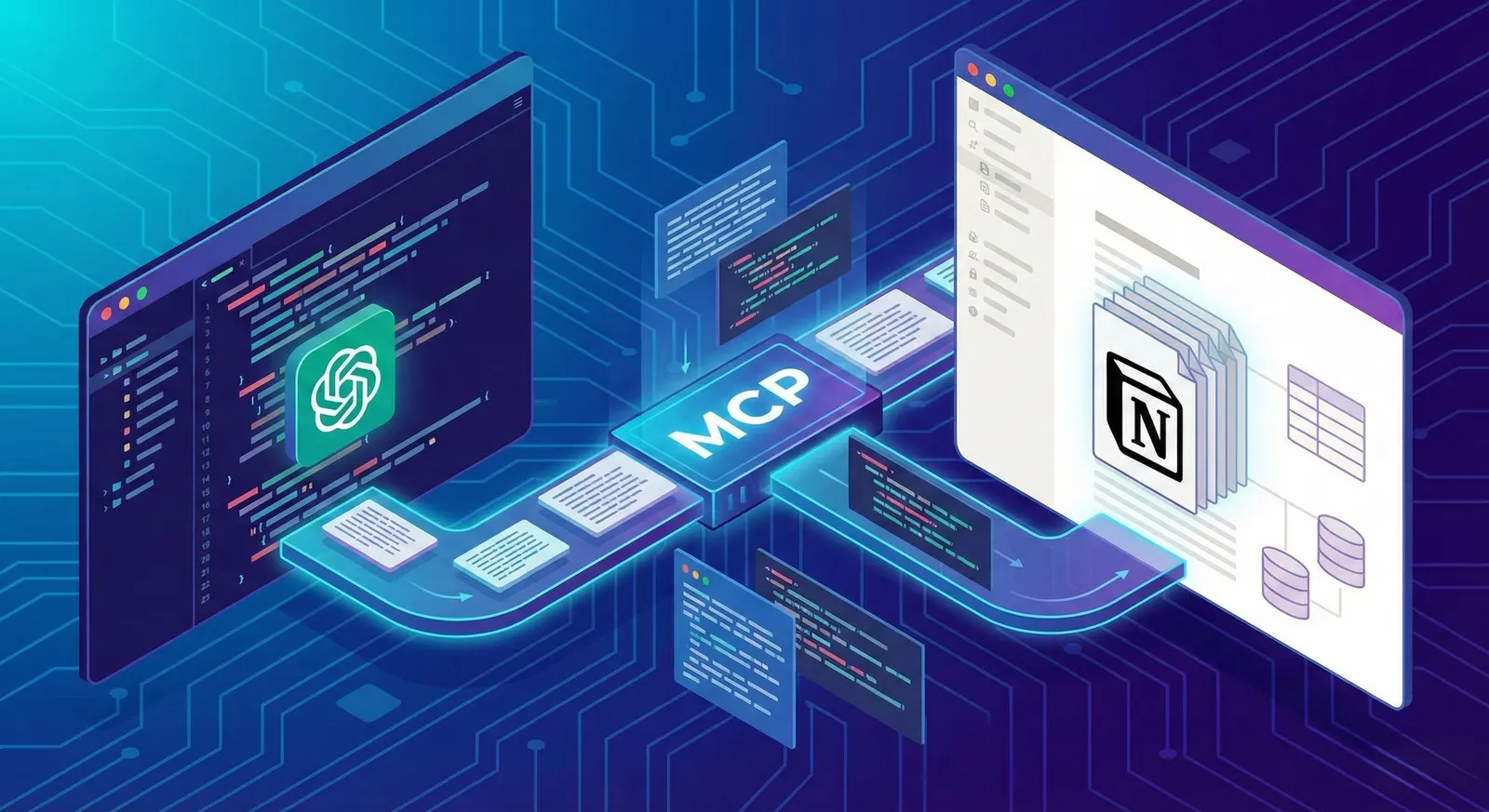
The command you provided is specific to Anthropic's Claude Code CLI. To configure the Notion MCP server for OpenAI's Codex, you need to use Codex's syntax, which handles remote HTTP servers slightly differently.
You have two ways to set this up.
Run this exact command in your terminal:
Bash
codex mcp add notion --url https://mcp.notion.com/mcp
config.toml)Codex shares its configuration between the CLI and the IDE extension using a TOML file rather than JSON.
Open (or create) your Codex config file located at ~/.codex/config.toml.
Paste the following block at the bottom of the file:
Ini, TOML
[mcp_servers.notion]url = "https://mcp.notion.com/mcp"
Because this specific Notion MCP server uses an OAuth flow over an HTTP transport, you will need to grant Codex permission to access your workspace before it can read or write documents.
Open your terminal and start a session by typing codex.
Once the Codex UI is running, type /mcp and hit enter.
Select the notion server from the list. It will give you a URL to open in your browser to complete the standard Notion login process.
(Note: You can also try running codex mcp login notion directly from your regular terminal to trigger the auth prompt).
Effective AI prompting requires constraining the problem, permissions, and success criteria, not the intelligence. Learn how to empower your AI agents.
Aug 1, 2026 · 4 min read
Read moreStop copy-pasting standard code snippets. Learn how AI coding agents use system context to automate workflows, fix bugs, and build better software.
Jul 30, 2026 · 5 min read
Read moreA case study on why fixed UI is becoming less important and how runtime-rendered interfaces can revolutionize operational software and business workflows.
Jul 30, 2026 · 7 min read
Read moreWe build the systems described here. A short call is usually enough to tell whether it's worth building.