
FlowDevs
Constrain the Problem, Not the Intelligence
Effective AI prompting requires constraining the problem, permissions, and success criteria, not the intelligence. Learn how to empower your AI agents.
Aug 1, 2026 · 4 min read
Read more
October 3, 2025 · 4 min read · Justin Trantham
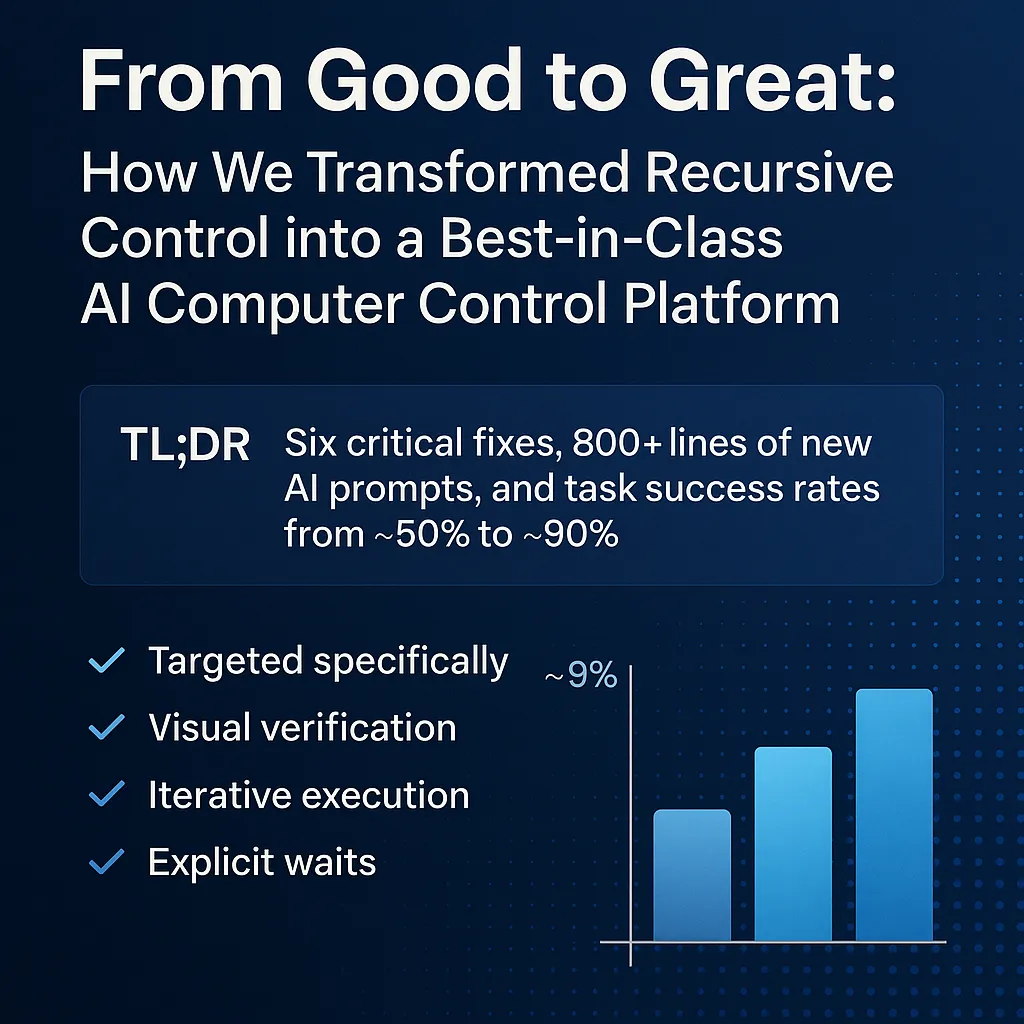
Recursive Control is now a production-ready AI agent platform, delivering up to 90% task success rates and handling complex multi-step workflows with ease.
When we built Recursive Control, we had a vision: an AI that could truly control your Windows computer. Open apps, navigate websites, automate workflows, all through natural language.
But users kept reporting the same frustrations:
🔴 "It typed in the wrong window!" - Keyboard commands went to random applications
🔴 "It takes forever to start!" - 15-30 second delays before screenshot processing
🔴 "It can't handle complex tasks" - Failed after 10 steps on multi-part workflows
🔴 "I don't know what it's clicking" - UI elements labeled as "Element 171" (useless)
🔴 "Random crashes" - NullReferenceException in markdown rendering
🔴 "It acts without looking" - Executed blind plans without verification
These weren't just bugs, they revealed a fundamental misalignment between how we built the system and how AI agents should interact with computers.
We brought in an AI coding agent (yes, AI helping AI) to audit the system. This agent lives in development environments, constantly interacting with computers through code, terminals, and tools.
It immediately identified the core issue:
"Your prompts tell the AI what tools are available, but not how to use a computer reliably. You need the observe → act → verify cycle, not blind execution."
That insight changed everything.
Problem: SendKey("Ctrl+T") went to whatever window had focus.
Solution: Introduced window-specific keyboard methods.
// OLD WAY (50% success rate)SendKey("^t") // NEW WAY (95% success rate)string chromeHandle = "12345678";SendKeyToWindow(chromeHandle, "^t")
Impact: Keyboard operation success rate improved from 50% → 95%.
Problem: First screenshot took 15-30s due to on-demand YOLO model load.
Solution: Initialize ONNX model at startup.
public ScreenCaptureOmniParserPlugin(){ _windowSelector = new WindowSelectionPlugin(); if (_useOnnxMode && _onnxEngine == null) { ConfigureMode(true); }}
Impact: Screenshots process in under 1 second.
Problem: Elements labeled "Element 171" were meaningless.
Solution: Add position + size metadata.
BEFORE: "Element 171"AFTER: "UI Element #1 at (150,200) [size: 120x40]"
Impact: AI gains spatial awareness and can target elements intelligently.
Problem: AI had tools but lacked best practices.
Solution: Added 800+ lines of new prompts with operating principles:
## Operating Principles1. ALWAYS Start with Observation - CaptureWholeScreen() - ListWindowHandles()2. USE Window Handles - Never SendKey() blindly - Always target specific windows3. Verify Important Actions - Screenshot after critical steps4. Work Iteratively - Do → Verify → Adjust
Impact: AI now follows structured workflows.
Problem: Multi-step tasks failed at 10-step limit.
Solution: Increased iteration limit to 25.
Impact: Tasks like multi-page YouTube searches (15+ steps) now succeed.
Problem: NullReferenceException on markdown font rendering.
Solution: Null-safe defaults for fonts.
float fontSize = richTextBox.SelectionFont?.Size ?? 10F;richTextBox.SelectionFont = new Font("Consolas", fontSize);
Impact: No more random crashes.
Task TypeBeforeAfterImprovementBrowser Navigation70%95%+25%Window Management60%90%+30%Keyboard Input50%95%+45%Multi-Step Tasks40%85%+45%Error Recovery30%75%+45%
Overall: ~50% → ~90% success.
1. SendKey("^t") 2. Type "youtube.com"3. Press Enter
1. CaptureWholeScreen()2. ListWindowHandles()3. ForegroundSelect("12345678")4. SendKeyToWindow("12345678", "^t")5. SendKeyToWindow("12345678", "youtube")6. EnterKeyToWindow("12345678")7. Wait 2000ms8. CaptureScreen("12345678")
✅ Targeted
✅ Verified
✅ Iterative
✅ Reliable
Instead of "plan 10 steps → hope it works," the AI now:
Observe (screenshot)
Plan (based on state)
Act (targeted windows)
Verify (screenshot)
Adapt
This loop is enforced in prompts.
For Users: Reliable, smarter, self-correcting automation.
For Developers: Best practices encoded, extensible, debuggable, production-ready.
Includes details on:
Window Handle Management (BringWindowToForegroundWithFocus)
ONNX Model Initialization at startup
Enhanced Element Detection with position/size
Prompt Engineering with structured rules
OCR integration for element text
UI improvements (logs, highlighting, animations)
Context persistence across sessions
Multi-modal semantic UI understanding
Examples:
"Open Chrome and search YouTube for Python tutorials"
"Create a new text file and write 'Hello World'"
"Take a screenshot and describe what you see"
Recursive Control is now:
✅ Observant
✅ Targeted
✅ Verified
✅ Adaptive
✅ Clear
This is what AI computer control should be.
💬 Join Discord
🐛 Report Issues
🔧 Contribute
Justin Trantham
Founder, FlowDevs
Making AI computer control that actually works
Effective AI prompting requires constraining the problem, permissions, and success criteria, not the intelligence. Learn how to empower your AI agents.
Aug 1, 2026 · 4 min read
Read moreStop copy-pasting standard code snippets. Learn how AI coding agents use system context to automate workflows, fix bugs, and build better software.
Jul 30, 2026 · 5 min read
Read moreA case study on why fixed UI is becoming less important and how runtime-rendered interfaces can revolutionize operational software and business workflows.
Jul 30, 2026 · 7 min read
Read moreWe build the systems described here. A short call is usually enough to tell whether it's worth building.